Configuring a Process
After creating a project, an empty process is created. You can add activities to the empty process to complete a task. For example, add a document item from the Microsoft SharePoint Shared Documents library.
Before you begin
Ensure that you have created an empty process when creating a project. See Creating a Project for more details.
- Procedure
- In the Project Explorer view, click the created project and open the empty process from the Processes folder.
- Select an activity from the Palette view and drop it in the Process editor.
For example, select and drop the Timer activity from the General Activities palette and the SharePoint REST Add ListItem activity from the SharePoint REST palette.
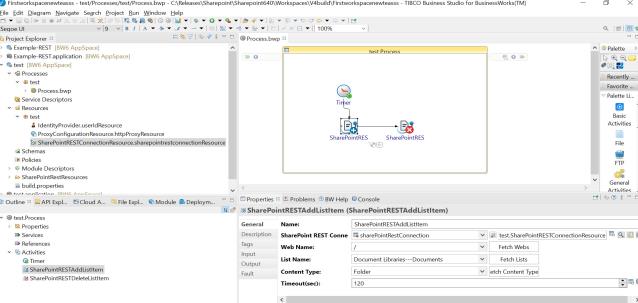 `
`
- Drag the
 icon to create a transition between the added activities.
- Configure the added SharePoint activities, as described in
SharePoint REST Palette.
Note: A SharePoint REST connection is required when configuring the SharePoint REST activities. See Creating a Connection for more details about how to create a SharePoint REST connection.
- Click to save the project.