Pushing an App and App Updates to the Cloud
After you have added at least one flow to the app and some activities to the flow, Push App gets enabled on the app details page. You can push your new app (or any updates you may have made to an existing app) to the cloud. Before you push your app, be sure to validate it to make sure that there are no errors. You must explicitly click Validate on the app details page in order to validate the flows in your app.
- Push App is enabled only after you have created at least one flow for your app and have added a trigger to the flow. Without a trigger added to a flow Push app remains disabled.
- For an existing app, Push app is disabled if you have not made any changes to the app since you last pushed it.
- Before pushing the app, if for some reason you want to revert the changes that you just made to the app, click Revert to Last Push. This allows you to revert your changes to the flow, but be aware that your changes to the flow are permanently lost.
To push your app to the cloud, click Push App on the app detail page.
You can see the progress as the app deploys.

Once the app is successfully deployed, the status changes to Running.

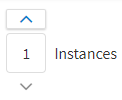
The number of instances of the app that are running is displayed to its left. You can scale the instances by hovering over or under the square box with the number and clicking the up or the down arrow that appears to scale up or down respectively.
To view the logs for the app click the Logs tab.